

웹 위젯
웹 위젯
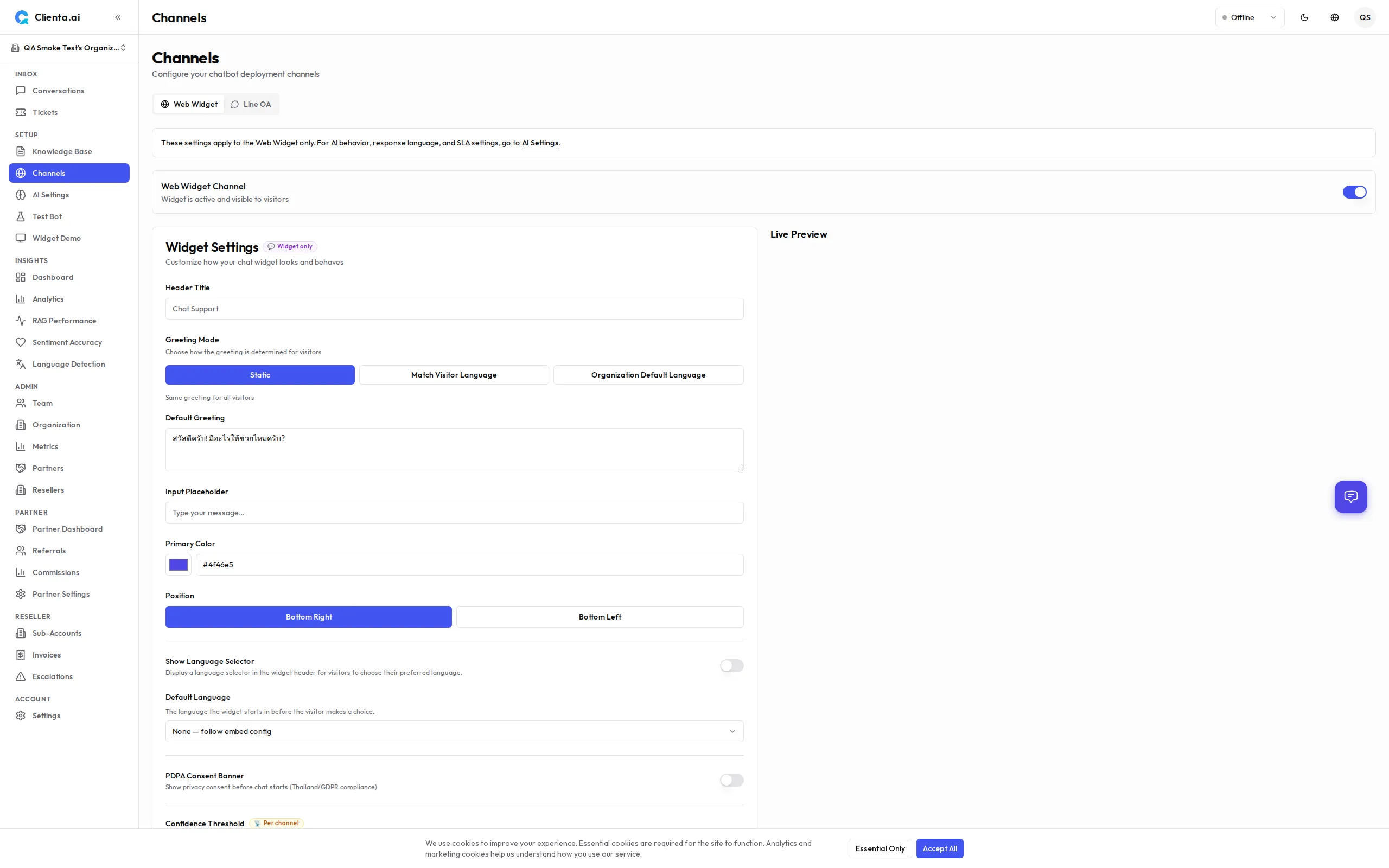
섹션 제목: “웹 위젯”웹 위젯을 사용하면 AI 봇이 구동하는 실시간 채팅 창을 모든 웹사이트에 직접 임베드할 수 있습니다. 브랜드에 맞게 커스터마이징하고 몇 분 안에 배포하세요.
-
왼쪽 메뉴에서 채널 → 웹 위젯으로 이동합니다.
-
위젯 만들기를 클릭하고 이름을 입력합니다.
-
위젯 설정을 구성합니다 (아래 커스터마이징 섹션 참조).
-
제공된 임베드 코드 스니펫을 복사합니다.
-
웹사이트 HTML의 닫는
</body>태그 바로 앞에 스니펫을 붙여넣습니다. -
사이트를 저장하고 게시하면 위젯이 즉시 표시됩니다.
임베드 코드
섹션 제목: “임베드 코드”<!-- Clienta.ai Web Widget --><script> window.ClientaConfig = { botId: "YOUR_BOT_ID", widgetId: "YOUR_WIDGET_ID", };</script><script src="https://api.clienta.ai/widget/YOUR_WIDGET_ID/loader.js" async></script>YOUR_BOT_ID와 YOUR_WIDGET_ID를 대시보드에 표시된 값으로 교체하세요.
커스터마이징
섹션 제목: “커스터마이징”| 옵션 | 설명 |
|---|---|
| 테마 색상 | 브랜드에 맞는 기본 색상을 설정합니다 (헥스 코드 또는 색상 선택기) |
| 환영 메시지 | 사용자가 위젯을 열었을 때 처음 표시되는 메시지 |
| 위치 | 화면 오른쪽 하단 또는 왼쪽 하단 배치를 선택합니다 |
| 아바타 | 봇의 커스텀 아바타 이미지를 업로드합니다 |
추가 옵션:
- 위젯 제목 — 위젯 헤더에 표시되는 이름
- 플레이스홀더 텍스트 — 메시지 입력창 내부의 힌트 텍스트
- 자동 열기 지연 — N초 후 위젯을 자동으로 열기 (선택 사항)
- 모바일에서 숨기기 — 모바일 기기에서 위젯 표시 여부 전환
작동 방식
섹션 제목: “작동 방식”-
사용자가 위젯을 엽니다 — 채팅 창이 페이지 모서리에서 슬라이드되어 열립니다.
-
봇에게 메시지 전송 — 사용자의 메시지가 보안 WebSocket 연결을 통해 Clienta.ai로 전송됩니다.
-
AI가 처리하고 응답 — 봇이 지식 베이스에서 관련 콘텐츠를 검색하여 답변을 생성합니다.
-
필요 시 사람에게 전달 — 신뢰도가 낮거나 사용자가 상담원을 요청하면, 대화가 대화 받은 편지함의 가용 상담원에게 라우팅됩니다.
연락처 양식
섹션 제목: “연락처 양식”AI 봇이 오프라인이거나 응답할 수 없을 때, 위젯은 방문자에게 연락처 정보를 남기도록 유도하는 CTA 말풍선을 표시합니다. 말풍선을 탭하면 연락처 양식이 열립니다:
| 필드 | 필수 여부 | 비고 |
|---|---|---|
| 이메일 | 예 | 후속 연락을 위해 항상 필수 |
| 전화번호 | 아니요 | 37개국 및 이모지 국기가 포함된 국가 코드 선택기 포함 (예: 🇹🇭 +66, 🇺🇸 +1, 🇬🇧 +44, 🇯🇵 +81). 서버 측 유효성 검사로 제출된 코드가 유효한지 확인합니다. |
| 이름 | 아니요 | 방문자 이름 |
| 메시지 | 아니요 | 추가 내용 |
연락처 양식 제출 시 관리자 티켓 페이지에서 볼 수 있는 티켓이 생성되며, 이메일과 전화번호가 모두 제공된 경우 함께 표시됩니다.
해결 후 새 채팅
섹션 제목: “해결 후 새 채팅”상담원이 대화를 종료하면 위젯에 시스템 알림과 “새 채팅 시작” 버튼이 표시됩니다. 버튼을 클릭하면:
- 현재 대화 기록이 지워집니다
- 새로운 WebSocket 세션으로 재연결됩니다
- 위젯이 초기 상태로 돌아갑니다
방문자가 페이지를 새로 고침하지 않고도 새로운 대화를 시작할 수 있습니다.
WebSocket 실시간
섹션 제목: “WebSocket 실시간”위젯은 실시간 저지연 메시징을 위해 지속적인 WebSocket 연결을 사용합니다. 주요 동작:
- 자동 재연결 — 연결이 끊기면 클라이언트가 자동으로 재연결합니다.
- 타이핑 표시기 — 봇이 응답을 생성하는 동안 타이핑 애니메이션을 표시합니다.
- 상담원 타이핑 표시기 — v1.6.8 사람 상담원이 답변을 입력하는 동안 위젯이 방문자에게 실시간으로 타이핑 애니메이션을 표시합니다.
- 메시지 기록 — 같은 브라우저 세션 내에서 대화 기록이 유지됩니다.
- 탭 간 동기화 — 사용자가 여러 탭을 열어도 대화 상태가 동기화됩니다.
마크다운 응답
섹션 제목: “마크다운 응답”AI 및 상담원 메시지는 일반 텍스트 대신 서식 있는 마크다운으로 렌더링됩니다. 지원되는 서식:
- 굵게, 기울임꼴,
취소선 - 링크 (새 탭에서 자동으로 열림)
- 인라인
코드및 펜스 코드 블록 - 순서 있는 목록 및 순서 없는 목록
- 제목, 인용구, 표
모든 마크다운 콘텐츠는 XSS 공격을 방지하기 위해 엄격한 허용 목록으로 정제됩니다. 별도의 설정이 필요하지 않으며 마크다운 렌더링은 모든 AI 및 상담원 응답에 기본적으로 활성화되어 있습니다. 사용자 메시지는 일반 텍스트로 유지됩니다.
브랜드 아바타
섹션 제목: “브랜드 아바타”위젯 헤더 및 홈 화면에 브랜드 로고 또는 커스텀 아바타를 표시합니다. 설정 → 채널 → 웹 → 커스터마이저에서 avatarUrl을 설정하거나 임베드 코드에서 config.theme.avatarUrl로 전달하세요.
https://URL만 허용됩니다- URL이 유효하지 않거나 이미지 로딩에 실패하면 기본 반짝임 아이콘이 표시됩니다
- 권장 사항: 최적의 결과를 위해 정사각형 이미지 사용 (예: 128 × 128 px)
자세한 내용은 위젯 커스터마이징 — 아바타를 참조하세요.
AI vs 사람 레이블
섹션 제목: “AI vs 사람 레이블”모든 비사용자 메시지에는 발신자를 식별하는 작은 작성자 레이블이 표시됩니다:
| 작성자 유형 | 표시되는 레이블 |
|---|---|
| AI 봇 | ”AI 어시스턴트” (현지화됨) |
| 사람 상담원 | 상담원 이름 (예: “Sarah”) |
레이블은 지원되는 15개 언어 모두에서 현지화되며 스크린 리더에서도 접근 가능합니다. 이를 통해 방문자가 AI 생성 응답과 사람의 응답을 명확히 구분할 수 있으며, 투명성 모범 사례를 지원합니다.
인사말 언어
섹션 제목: “인사말 언어”위젯 인사말 메시지는 설정 → 채널 → 웹 → 커스터마이저 → 인사말 모드에서 구성할 수 있는 세 가지 언어 모드를 지원합니다:
| 모드 | 동작 |
|---|---|
| 정적 | 언어에 관계없이 모든 방문자에게 동일한 인사말을 표시합니다 |
| 방문자 언어 맞춤 | 언어별 인사말을 표시합니다 — 15개 로케일 각각에 대해 다른 인사말 텍스트를 구성하세요 |
| 조직 기본 언어 | AI 설정에서 설정된 조직의 주요 응답 언어로 항상 인사말을 표시합니다 |
방문자 언어 맞춤 모드에서 인사말이 구성되지 않은 로케일은 정적 인사말 텍스트로 대체됩니다.
단계별 구성 방법은 위젯 커스터마이징 — 인사말 모드를 참조하세요.
언어 선택기
섹션 제목: “언어 선택기”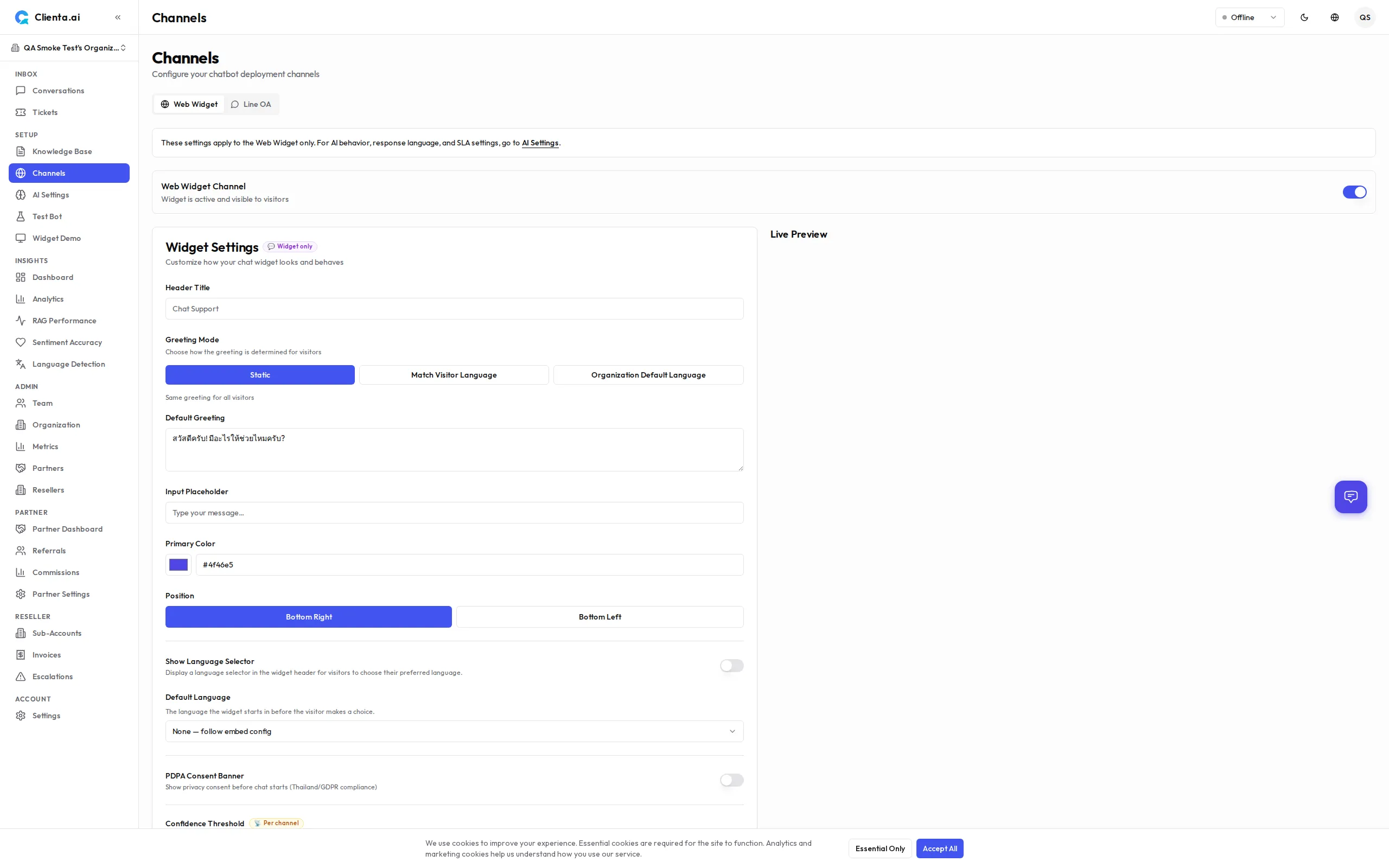
위젯은 헤더에 지구본 아이콘을 표시하여 방문자가 선호하는 언어를 명시적으로 선택할 수 있게 합니다. 이 기능은 기본적으로 비활성화되어 있으며 설정 → 채널 → 웹 → 커스터마이저에서 위젯별로 활성화해야 합니다.
활성화 시:
- 위젯 헤더에 지구본 (🌐) 아이콘이 표시됩니다
- 방문자는 최대 15개의 지원 로케일 중에서 선택할 수 있습니다
- 언어를 선택하면 세션 동안 모든 AI 응답이 해당 언어로 고정되어 자동 감지를 재정의합니다
- 방문자가 다른 언어로 입력해도 고정 설정이 유지됩니다
RTL (오른쪽에서 왼쪽) 지원
섹션 제목: “RTL (오른쪽에서 왼쪽) 지원”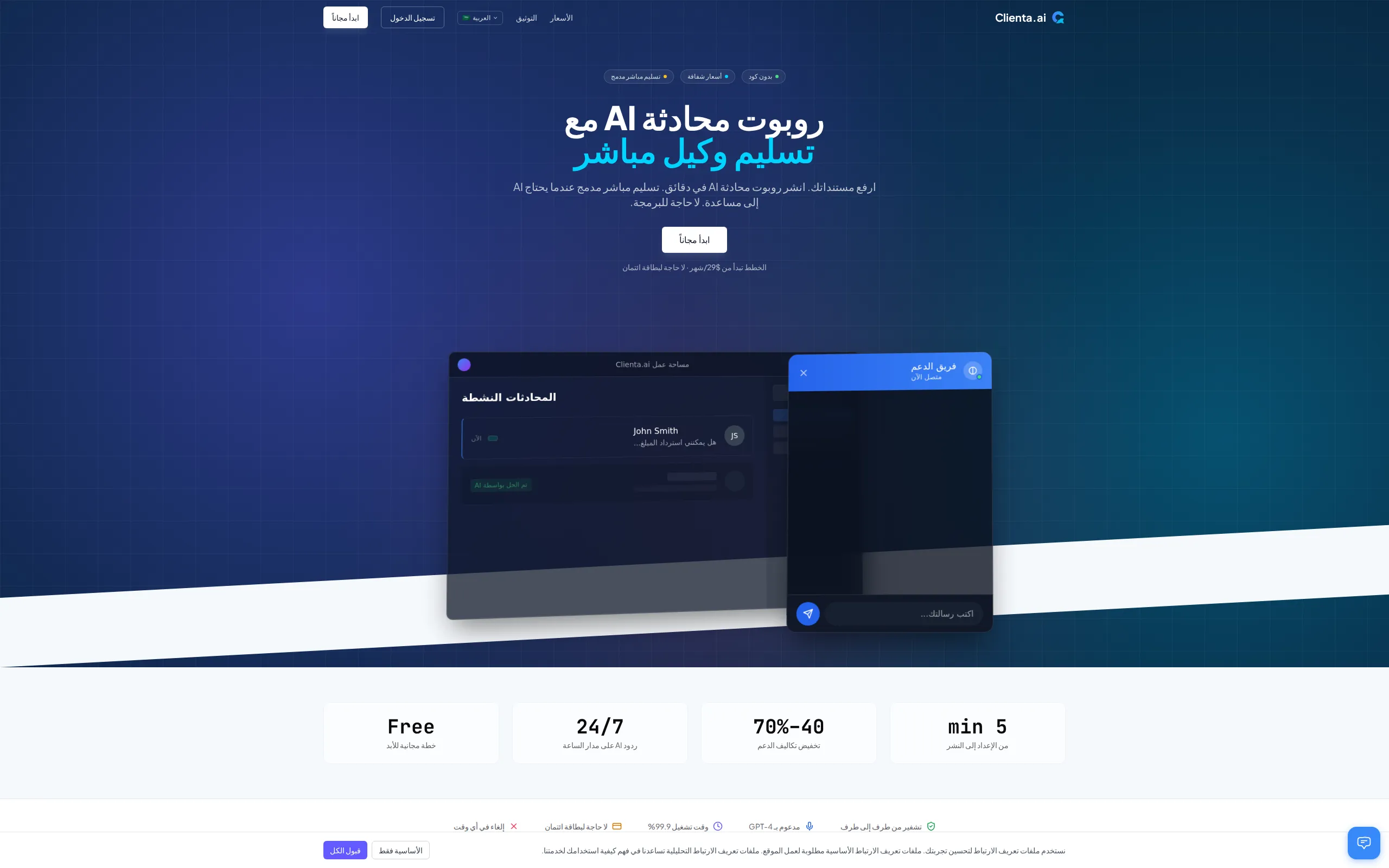
위젯과 랜딩 페이지는 아랍어 및 히브리어의 RTL 레이아웃을 완전히 지원합니다. 방문자가 RTL 로케일을 사용하는 경우:
- 전체 레이아웃이 미러링됩니다 (텍스트 정렬, 탐색, UI 요소)
<html dir="rtl">속성이 자동으로 설정됩니다- 채팅 메시지와 입력창이 RTL 읽기 흐름에 맞게 올바르게 정렬됩니다
별도의 수동 구성이 필요하지 않으며 RTL은 선택한 로케일에 따라 자동으로 활성화됩니다.
마운트 타임아웃 대체
섹션 제목: “마운트 타임아웃 대체”위젯 스크립트(widget.js)가 10초 내에 로드되지 않으면 임베드는 빈 공간 대신 대체 UI를 표시합니다. 대체 UI에는 재시도 버튼이 포함되어 있어 방문자가 페이지를 새로 고침하지 않고도 위젯 다시 로드를 시도할 수 있습니다.
이를 통해 네트워크 문제, 광고 차단기, CDN 장애로 위젯이 마운트되지 않을 때 사용자 경험을 보호합니다.
위젯 비주얼 리디자인
섹션 제목: “위젯 비주얼 리디자인”위젯은 v1.6.8에서 현대적이고 세련된 모습으로 시각적 새단장을 받았습니다:
- 그라디언트 헤더 — 위젯 헤더가 테마 색상을 기반으로 한 은은한 그라디언트를 사용하며, 상태 점과 아바타 표시를 포함합니다.
- 둥근 메시지 말풍선 — 채팅 말풍선이 더 부드러운 외형을 위해 더 큰 테두리 반경(
rounded-2xl)을 사용합니다. - 애니메이션 열기/닫기 — 위젯이 즉시 나타나는 대신 부드러운 CSS 애니메이션으로 슬라이드됩니다.
- 재설계된 런처 — 채팅 버블 런처가 브랜드 색상의 글로우 그림자와 입장 애니메이션이 있는 60px 스쿼클입니다.
- 다크 모드 토글 — 채팅 헤더의 토글 버튼으로 방문자가 세션 중 라이트 모드와 다크 모드를 전환할 수 있습니다.
- 테마 포커스 링 — 입력 필드에 접근성을 위한 브랜드 색상 포커스 링이 표시됩니다.
- 알림 배지 — 런처 버블에 읽지 않은 메시지 배지가 표시됩니다.
이러한 시각적 변경 사항은 자동으로 적용됩니다 — 별도의 구성 변경이 필요하지 않습니다.
인용 칩
섹션 제목: “인용 칩”AI 봇이 지식 베이스에서 가져온 정보로 응답할 때 메시지 아래에 인용 칩이 표시됩니다. 각 칩은 답변에 기여한 검색된 문서를 나타냅니다.
| 동작 | 설명 |
|---|---|
| 칩 표시 | 최대 3개의 문서 제목 칩을 표시합니다. 더 많은 소스가 사용된 경우 “+N 더보기” 칩으로 추가 인용을 표시합니다. |
| 클릭하여 확장 | 칩을 클릭하면 검색된 콘텐츠의 처음 200자를 보여주는 인라인 스니펫이 토글됩니다. 한 번에 하나의 스니펫만 열 수 있습니다. |
| 제목 잘림 | 긴 문서 제목은 줄임표와 함께 40자로 잘립니다. |
| 테마 적용 | 칩은 위젯의 기본 색상을 은은한 틴트로 사용하며, 다크 모드와 RTL을 완전히 지원합니다. |
| 접근성 | 칩은 적절한 ARIA 레이블(aria-expanded), 목록 역할, 스크린 리더 지원을 통해 키보드로 탐색할 수 있습니다. |
인용 칩은 방문자에게 봇의 답변 출처에 대한 투명성을 제공하여 AI 응답에 대한 신뢰를 높입니다. 별도의 구성이 필요하지 않으며 RAG 파이프라인이 관련 문서를 검색하면 자동으로 인용이 표시됩니다.
자동 스크롤
섹션 제목: “자동 스크롤”위젯은 새 콘텐츠가 도착할 때마다 최신 메시지로 자동 스크롤됩니다. 적용 대상:
- AI 봇 또는 사람 상담원의 새 메시지
- 봇이 실시간으로 응답을 생성하는 동안의 스트리밍 콘텐츠
스크롤은 부드러운 애니메이션을 사용하여 자연스러운 전환감을 제공합니다. 별도의 구성이 필요하지 않으며 자동 스크롤은 항상 활성화되어 있습니다.
플랜별 채널 한도
섹션 제목: “플랜별 채널 한도”| 플랜 | 최대 채널 수 |
|---|---|
| 무료 | 1 |
| 스타터 | 2 |
| 그로스 | 5 |
| 플러스 | 6 |
| 프로 | 15 |
| 스케일 | 30 |
| 엔터프라이즈 | 50 |