

Conversations
Conversations
Section titled “Conversations”The Conversations screen is your unified inbox. Every message from every connected channel — Web Widget, LINE OA, and future channels — flows into one place so your team never misses a customer.
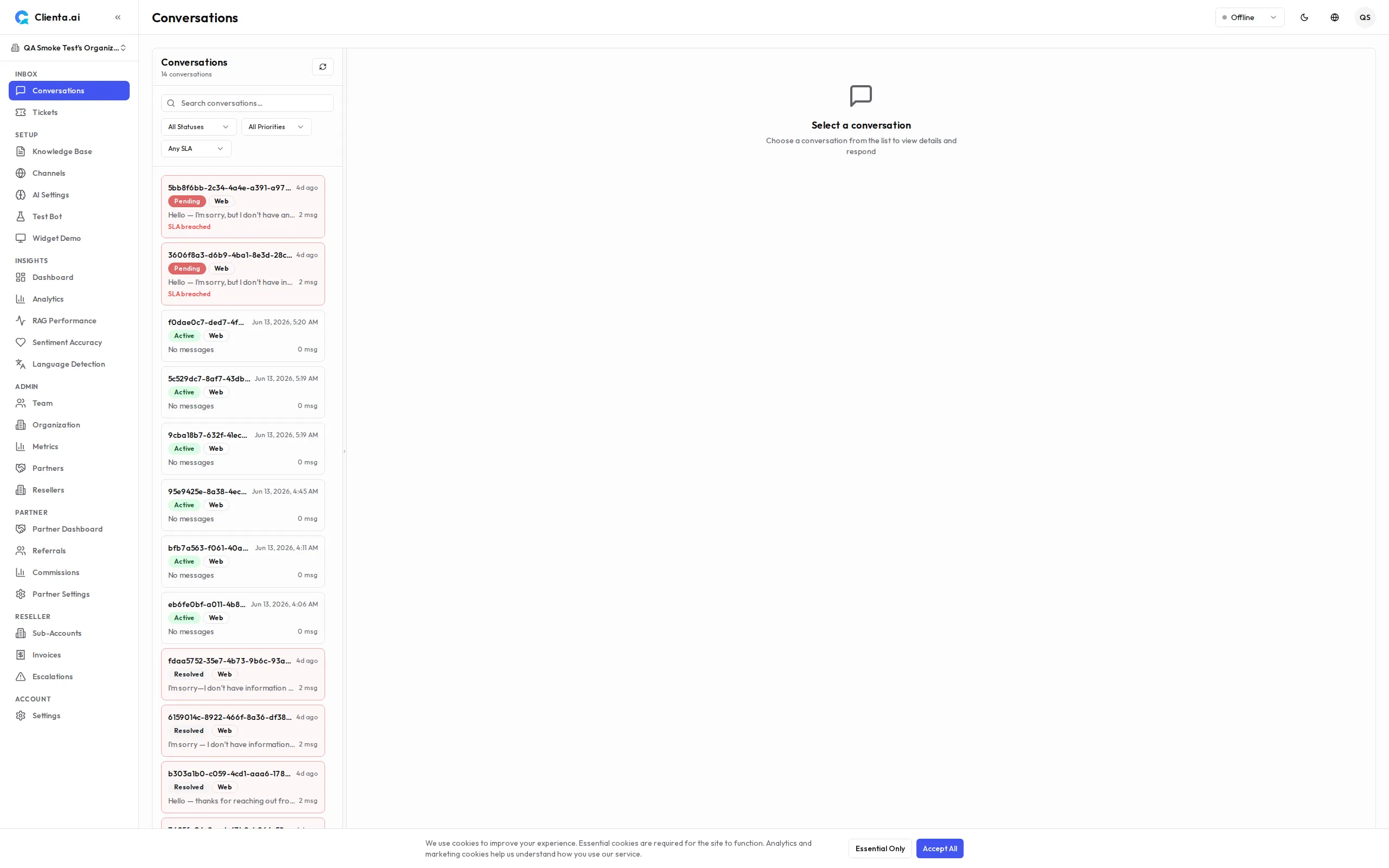
The inbox displays all conversations with filters to help you focus on what needs attention:
Filter by Status:
- Active — Conversations currently being handled by the AI bot or an agent
- Pending Handoff — Conversations where the AI has flagged low confidence and is waiting for a human agent to take over
- Resolved — Conversations that have been closed
- Archived v1.10.0 — Conversations removed from the active inbox but kept on record (see Archiving Conversations)
Filter by Channel:
- View conversations from a specific channel (e.g., Web Widget only, or LINE OA only)
- Or view All Channels in a single unified feed
Filter by Assignment v1.10.0
Narrow the inbox by who is handling a conversation:
- Mine — Conversations assigned to you
- Unassigned — Conversations with no agent assigned yet (a great place to pick up new work)
- All — Every conversation regardless of assignment
Combine the assignment filter with the status and channel filters to build your ideal triage view.
Pending-Handoff Counter Badge
Section titled “Pending-Handoff Counter Badge”The Conversations item in the sidebar now displays a counter badge showing how many conversations are currently in Pending Handoff — waiting for a human agent. The badge updates in real time as conversations move in and out of handoff, so you can see at a glance when customers need attention. Counts over 99 display as 99+.
Conversation Detail
Section titled “Conversation Detail”Click any conversation to open the full detail view:
| Element | Description |
|---|---|
| Message Thread | Full conversation history between the user and the bot/agent, in chronological order |
| Status | Current status shown as a colored pill — green (Active), yellow (Pending Handoff), gray (Resolved) |
| Priority | v1.6.8 Color-coded priority pill — red (Urgent), orange (High), amber (Normal), green (Low). Appears separately from the status pill. |
| Resolve Button | v1.6.8 Close the conversation (see Resolve Behavior below) |
| Source Context | Metadata about the conversation — when it started, session ID, and any context tags |
| Channel | Which channel this conversation came from (Web Widget, LINE OA, etc.) |
Resolve Behavior
Section titled “Resolve Behavior”Admins can resolve conversations in any status (active, pending handoff, or assigned). The button label changes based on the conversation state:
| Conversation Status | Button Label | Action |
|---|---|---|
| Human Assigned | ปิดเรื่อง (Resolve) | Resolves the conversation assigned to the current agent |
| Active / Pending Handoff | ปิดการสนทนา (Close) | Admin closes the conversation directly |
Non-admin agents can only resolve conversations assigned to them.
For Agents
Section titled “For Agents”When a conversation lands in Pending Handoff, here is how to handle it:
-
Open the conversation from the Pending Handoff filter in the inbox.
-
Review the conversation history to understand the context before responding.
-
Click Take Over to assign the conversation to yourself — this moves it to Active and notifies the user that a human agent has joined.
-
Reply to the user using the message input at the bottom of the thread.
-
When the issue is resolved, click Resolve to close the conversation and move it to the Resolved tab.
Archiving Conversations
Section titled “Archiving Conversations”To keep the inbox focused on active work, you can archive a conversation. Archiving removes it from the default inbox view without deleting it — useful for conversations that are finished but that you want to keep on the record. Use the Archive action from a conversation’s action tabs.
Archived conversations behave like resolved or closed conversations:
- They are excluded from the default real-time inbox updates
- They do not count toward the pending-handoff counter badge
- They remain searchable and can be reviewed later via the Archived status filter
Lazy Conversation Creation
Section titled “Lazy Conversation Creation”A conversation record is now created only when the first inbound message is received, rather than the moment a visitor opens the widget. This reduces empty or abandoned conversation records and improves overall performance. No action is required — this behavior is enabled by default.
Multi-Language Auto-Detect
Section titled “Multi-Language Auto-Detect”Clienta.ai uses ML-based language detection to automatically identify the customer’s language across all 15 supported locales. When a customer sends a message in Japanese, Arabic, or any supported language, the AI:
- Detects the language from the message content using ML classification
- Responds in the same language using the knowledge base
- Maintains language consistency throughout the conversation
This works seamlessly across all channels (Web Widget, LINE OA) without any manual configuration. The detection supports: Thai, English, Chinese (Simplified & Traditional), Japanese, Korean, Vietnamese, Indonesian, Malay, Arabic, Hindi, French, German, Spanish, and Portuguese.
Interface Localization
Section titled “Interface Localization”The conversations dashboard interface is now fully localized across every supported locale. Agents working in Thai, Japanese, Arabic, or any other supported language see labels, filters, status pills, and action buttons in their preferred language. Choose your language from your account settings to match the interface to your team.
Bulk Actions
Section titled “Bulk Actions”You can select multiple conversations and apply bulk actions:
- Resolve All — Close multiple resolved conversations at once
- Re-assign — Move selected conversations to another agent
- Export — Download conversation history as CSV (Pro and Enterprise plans)
Search
Section titled “Search”Use the search bar at the top of the inbox to find conversations by:
- User message content
- Session ID
- Date range
Search results respect your active channel and status filters.