

Widget Web
Widget Web
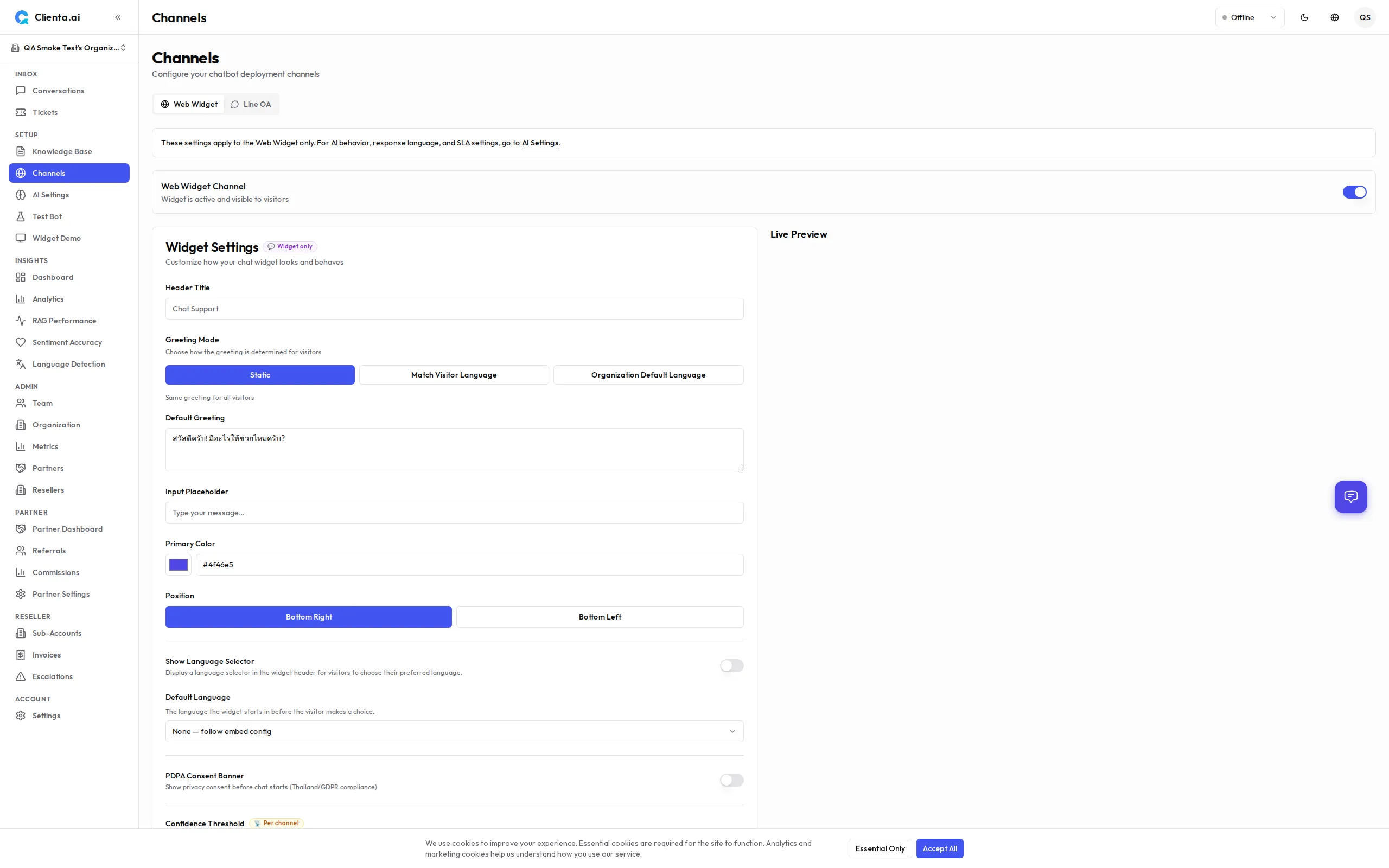
Sección titulada «Widget Web»El Widget Web te permite incrustar una ventana de chat en vivo impulsada por tu bot de IA directamente en cualquier sitio web. Personalízalo para que coincida con tu marca e impleméntalo en minutos.
Instalación
Sección titulada «Instalación»-
Ve a Canales → Widget Web en el menú izquierdo.
-
Haz clic en Crear Widget y dale un nombre.
-
Configura los ajustes del widget (consulta Personalización a continuación).
-
Copia el fragmento de código de incrustación proporcionado.
-
Pega el fragmento en el HTML de tu sitio web, justo antes de la etiqueta de cierre
</body>. -
Guarda y publica tu sitio — el widget aparecerá de inmediato.
Código de Incrustación
Sección titulada «Código de Incrustación»<!-- Clienta.ai Web Widget --><script> window.ClientaConfig = { botId: "YOUR_BOT_ID", widgetId: "YOUR_WIDGET_ID", };</script><script src="https://api.clienta.ai/widget/YOUR_WIDGET_ID/loader.js" async></script>Reemplaza YOUR_BOT_ID y YOUR_WIDGET_ID con los valores que aparecen en tu panel de control.
Personalización
Sección titulada «Personalización»| Opción | Descripción |
|---|---|
| Color del Tema | Establece el color primario para que coincida con tu marca (código hexadecimal o selector de color) |
| Mensaje de Bienvenida | El primer mensaje que se muestra cuando un usuario abre el widget |
| Posición | Elige la ubicación en la esquina inferior derecha o inferior izquierda de la pantalla |
| Avatar | Sube una imagen de avatar personalizada para el bot |
Las opciones adicionales incluyen:
- Título del Widget — Nombre que se muestra en el encabezado del widget
- Texto de Marcador de Posición — Texto de sugerencia dentro del cuadro de entrada de mensajes
- Retraso de Apertura Automática — Abre automáticamente el widget después de N segundos (opcional)
- Ocultar en Móvil — Activa o desactiva la visibilidad del widget en dispositivos móviles
Cómo Funciona
Sección titulada «Cómo Funciona»-
El usuario abre el widget — La ventana de chat se desliza desde la esquina de la página.
-
Mensaje enviado al bot — El mensaje del usuario se envía a Clienta.ai a través de una conexión WebSocket segura.
-
La IA procesa y responde — El bot recupera contenido relevante de la base de conocimientos y genera una respuesta.
-
Transferencia a humano si es necesario — Si la confianza es baja o el usuario solicita un humano, la conversación se enruta a un agente disponible a través de la bandeja de entrada de Conversaciones.
Formulario de Contacto
Sección titulada «Formulario de Contacto»Cuando el bot de IA está fuera de línea o no puede responder, el widget muestra un globo de llamada a la acción que invita al visitante a dejar sus datos de contacto. Al tocar el globo se abre un formulario de contacto:
| Campo | Requerido | Notas |
|---|---|---|
| Correo electrónico | Sí | Siempre requerido para el seguimiento |
| Teléfono | No | Incluye un selector de código de país con 37 países y banderas emoji (p. ej. 🇹🇭 +66, 🇺🇸 +1, 🇬🇧 +44, 🇯🇵 +81). La validación del lado del servidor garantiza que los códigos enviados sean válidos. |
| Nombre | No | Nombre del visitante |
| Mensaje | No | Contexto adicional |
El envío del formulario de contacto crea un ticket visible en la página de Tickets del administrador, mostrando tanto el correo electrónico como el teléfono cuando se proporcionan.
Nuevo Chat Tras Resolución
Sección titulada «Nuevo Chat Tras Resolución»Cuando un agente resuelve una conversación, el widget muestra un aviso del sistema y un botón “Iniciar Nuevo Chat”. Al hacer clic:
- Borra el historial de la conversación actual
- Se reconecta con una nueva sesión WebSocket
- Devuelve el widget a su estado inicial
Esto permite a los visitantes iniciar una nueva conversación sin actualizar la página.
WebSocket en Tiempo Real
Sección titulada «WebSocket en Tiempo Real»El widget utiliza una conexión WebSocket persistente para mensajería en tiempo real y baja latencia. Comportamientos clave:
- Reconexión automática — El cliente se reconecta automáticamente si se cae la conexión.
- Indicador de escritura — Muestra una animación de escritura mientras el bot genera una respuesta.
- Indicador de escritura del agente — v1.6.8 Cuando un agente humano está escribiendo una respuesta, el widget muestra una animación de escritura al visitante en tiempo real.
- Historial de mensajes — El historial de la conversación se conserva dentro de la misma sesión del navegador.
- Sincronización entre pestañas — Si el usuario tiene varias pestañas abiertas, el estado de la conversación se sincroniza.
Respuestas en Markdown
Sección titulada «Respuestas en Markdown»Los mensajes de IA y de agentes se renderizan como markdown formateado en lugar de texto plano. El formato compatible incluye:
- Negrita, cursiva,
tachado - Enlaces (se abren en una pestaña nueva automáticamente)
códigoen línea y bloques de código delimitados- Listas ordenadas y no ordenadas
- Encabezados, citas en bloque y tablas
Todo el contenido markdown se sanea con una lista de permitidos estricta para prevenir ataques XSS. No se necesita configuración — el renderizado de markdown está habilitado por defecto para todas las respuestas de IA y agentes. Los mensajes de los usuarios permanecen como texto plano.
Avatar de Marca
Sección titulada «Avatar de Marca»Muestra el logotipo de tu marca o un avatar personalizado en el encabezado del widget y en la pantalla de inicio. Establece el avatarUrl en Configuración → Canales → Web → Personalizador o pásalo como config.theme.avatarUrl en el código de incrustación.
- Solo se aceptan URLs con
https:// - Si la URL no es válida o la imagen no se carga, se muestra el icono de destello predeterminado
- Recomendado: una imagen cuadrada (p. ej. 128 × 128 px) para mejores resultados
Consulta Personalización del Widget — Avatar para más detalles.
Etiquetas de IA vs. Humano
Sección titulada «Etiquetas de IA vs. Humano»Cada mensaje que no sea del usuario muestra una pequeña etiqueta de autor que identifica al remitente:
| Tipo de autor | Etiqueta mostrada |
|---|---|
| Bot de IA | ”Asistente de IA” (localizado) |
| Agente humano | Nombre del agente (p. ej. “Sarah”) |
Las etiquetas están localizadas en los 15 idiomas compatibles y son accesibles para lectores de pantalla. Esto ayuda a los visitantes a distinguir claramente entre respuestas generadas por IA y respuestas humanas, apoyando las mejores prácticas de transparencia.
Idioma del Saludo
Sección titulada «Idioma del Saludo»El mensaje de saludo del widget admite tres modos de idioma, configurados en Configuración → Canales → Web → Personalizador → Modo de Saludo:
| Modo | Comportamiento |
|---|---|
| Estático | Muestra el mismo saludo a todos los visitantes independientemente del idioma |
| Coincidir con Visitante | Muestra un saludo por idioma — configura un texto de saludo diferente para cada una de las 15 configuraciones regionales |
| Principal de la Org | Siempre muestra el saludo en el idioma principal de respuesta de la organización (establecido en Configuración de IA) |
En el modo Coincidir con Visitante, cualquier configuración regional sin saludo configurado utiliza como respaldo el texto del saludo estático.
Consulta Personalización del Widget — Modo de Saludo para la configuración paso a paso.
Selector de Idioma
Sección titulada «Selector de Idioma»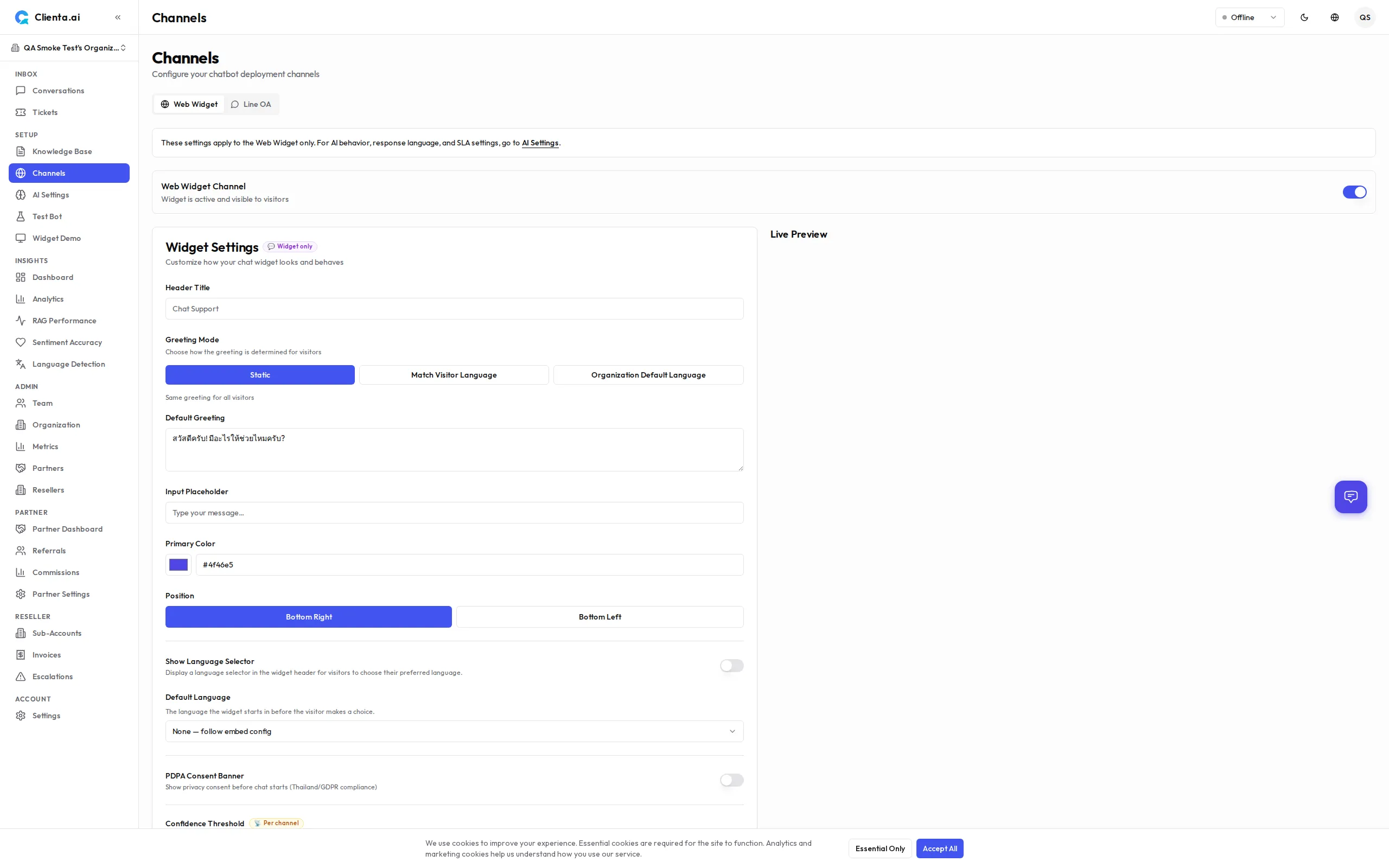
El widget puede mostrar un ícono de globo en el encabezado que permite a los visitantes elegir explícitamente su idioma preferido. Esta función está deshabilitada por defecto y debe habilitarse por widget en Configuración → Canales → Web → Personalizador.
Cuando está habilitado:
- Aparece un ícono de globo (🌐) en el encabezado del widget
- Los visitantes pueden elegir entre hasta 15 configuraciones regionales compatibles
- Seleccionar un idioma bloquea todas las respuestas de IA a ese idioma durante la sesión, anulando la detección automática
- El bloqueo persiste incluso si el visitante escribe en un idioma diferente
Compatibilidad con RTL (Derecha a Izquierda)
Sección titulada «Compatibilidad con RTL (Derecha a Izquierda)»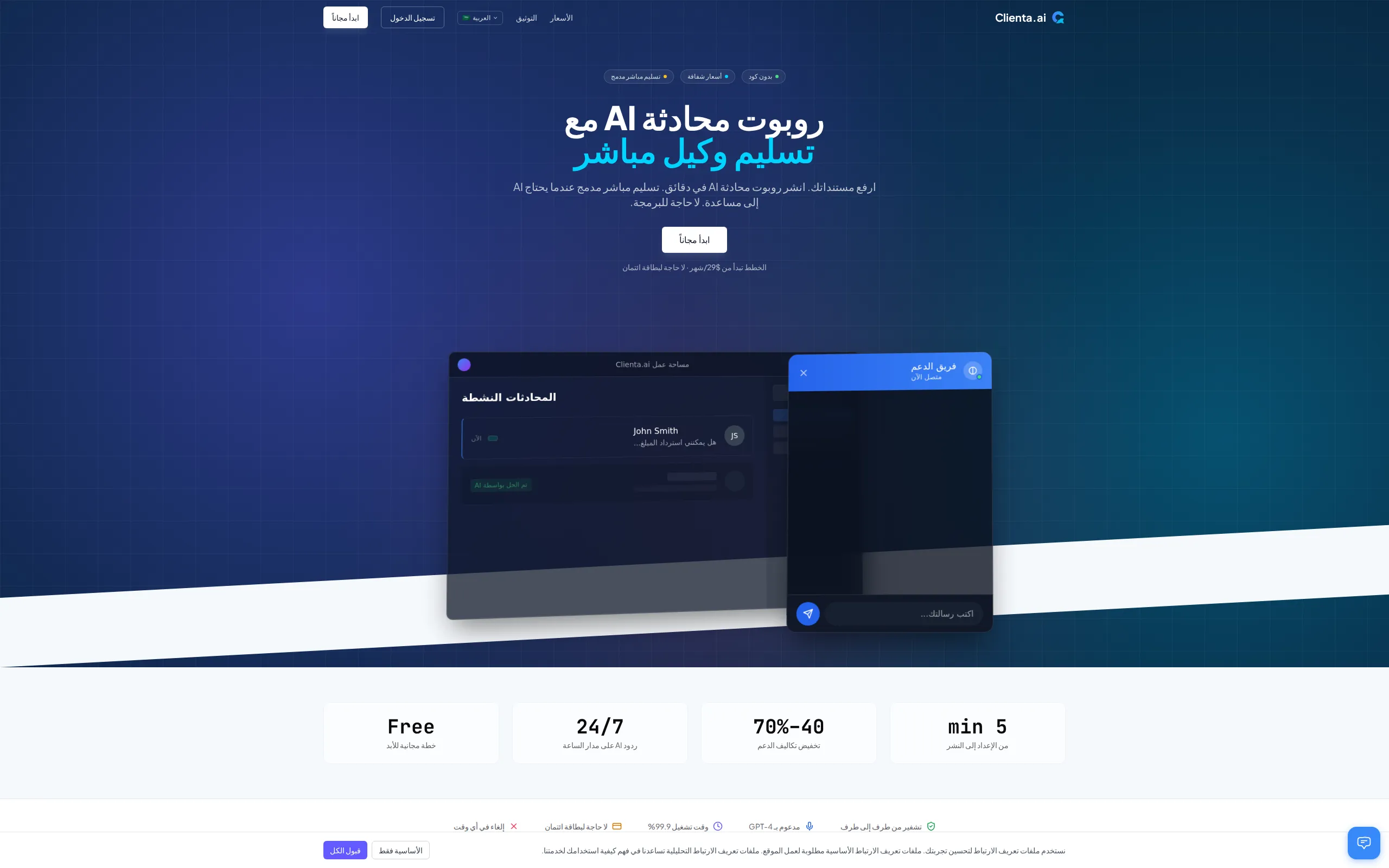
El widget y la página de inicio son totalmente compatibles con diseños RTL para árabe y hebreo. Cuando un visitante usa una configuración regional RTL:
- Todo el diseño se refleja (alineación de texto, navegación, elementos de la interfaz)
- El atributo
<html dir="rtl">se establece automáticamente - Los mensajes de chat y el cuadro de entrada se alinean correctamente para el flujo de lectura RTL
No se necesita configuración manual — RTL se activa automáticamente según la configuración regional seleccionada.
Alternativa por Tiempo de Espera de Montaje
Sección titulada «Alternativa por Tiempo de Espera de Montaje»Si el script del widget (widget.js) no se carga en 10 segundos, la incrustación muestra una interfaz de respaldo en lugar de dejar un espacio en blanco. El respaldo incluye un botón de reintento para que el visitante pueda intentar recargar el widget sin actualizar la página.
Esto protege la experiencia del usuario cuando problemas de red, bloqueadores de anuncios o interrupciones de la CDN impiden que el widget se monte.
Rediseño Visual del Widget
Sección titulada «Rediseño Visual del Widget»El widget recibió una actualización visual en v1.6.8 con un aspecto moderno y pulido:
- Encabezado con degradado — El encabezado del widget usa un degradado sutil basado en el color de tu tema, con un punto de estado y visualización del avatar.
- Burbujas de mensajes redondeadas — Las burbujas de chat usan un radio de borde mayor (
rounded-2xl) para una apariencia más suave. - Animación de apertura/cierre — El widget se desliza hacia adentro y hacia afuera con animaciones CSS suaves en lugar de aparecer instantáneamente.
- Lanzador rediseñado — El lanzador de burbujas de chat es un squircle de 60px con una sombra de resplandor del color de la marca y una animación de entrada.
- Alternancia de modo oscuro — Un botón de alternancia en el encabezado del chat permite a los visitantes cambiar entre modo claro y oscuro durante su sesión.
- Anillos de enfoque temáticos — Los campos de entrada muestran anillos de enfoque del color de la marca para accesibilidad.
- Insignia de notificación — Una insignia de mensajes no leídos aparece en la burbuja del lanzador.
Estos cambios visuales se aplican automáticamente — no se necesitan cambios de configuración.
Chips de Citas
Sección titulada «Chips de Citas»Cuando el bot de IA responde con información proveniente de tu base de conocimientos, aparecen chips de citas debajo del mensaje. Cada chip representa un documento recuperado que contribuyó a la respuesta.
| Comportamiento | Descripción |
|---|---|
| Visualización de chips | Muestra hasta 3 chips de título de documento. Si se usaron más fuentes, un chip “+N más” indica citas adicionales. |
| Clic para expandir | Al hacer clic en un chip se activa o desactiva un fragmento en línea que muestra los primeros 200 caracteres del contenido recuperado. Solo se puede abrir un fragmento a la vez. |
| Truncamiento de título | Los títulos de documentos largos se truncan a 40 caracteres con puntos suspensivos. |
| Tematización | Los chips usan el color primario de tu widget como tinte sutil, con soporte completo para modo oscuro y RTL. |
| Accesibilidad | Los chips son navegables por teclado con etiquetas ARIA adecuadas (aria-expanded), roles de lista y soporte para lectores de pantalla. |
Los chips de citas dan a los visitantes transparencia sobre el origen de la respuesta del bot, generando confianza en las respuestas de IA. No se requiere configuración — las citas aparecen automáticamente cuando el pipeline RAG recupera documentos relevantes.
Desplazamiento Automático
Sección titulada «Desplazamiento Automático»El widget se desplaza automáticamente al mensaje más reciente cada vez que llega nuevo contenido. Esto aplica a:
- Nuevos mensajes del bot de IA o de un agente humano
- Contenido en streaming mientras el bot genera una respuesta en tiempo real
El desplazamiento usa una animación suave para que la transición se sienta natural. No se necesita configuración — el desplazamiento automático siempre está activo.
Límites de Canales por Plan
Sección titulada «Límites de Canales por Plan»| Plan | Canales Máximos |
|---|---|
| Free | 1 |
| Starter | 2 |
| Growth | 5 |
| Plus | 6 |
| Pro | 15 |
| Scale | 30 |
| Enterprise | 50 |