Web-Widget
Web-Widget
Abschnitt betitelt „Web-Widget“Das Web-Widget ermöglicht es dir, ein Live-Chat-Fenster, das von deinem KI-Bot betrieben wird, direkt in jede Website einzubetten. Passe es an deine Marke an und deploye es in wenigen Minuten.
Installation
Abschnitt betitelt „Installation“-
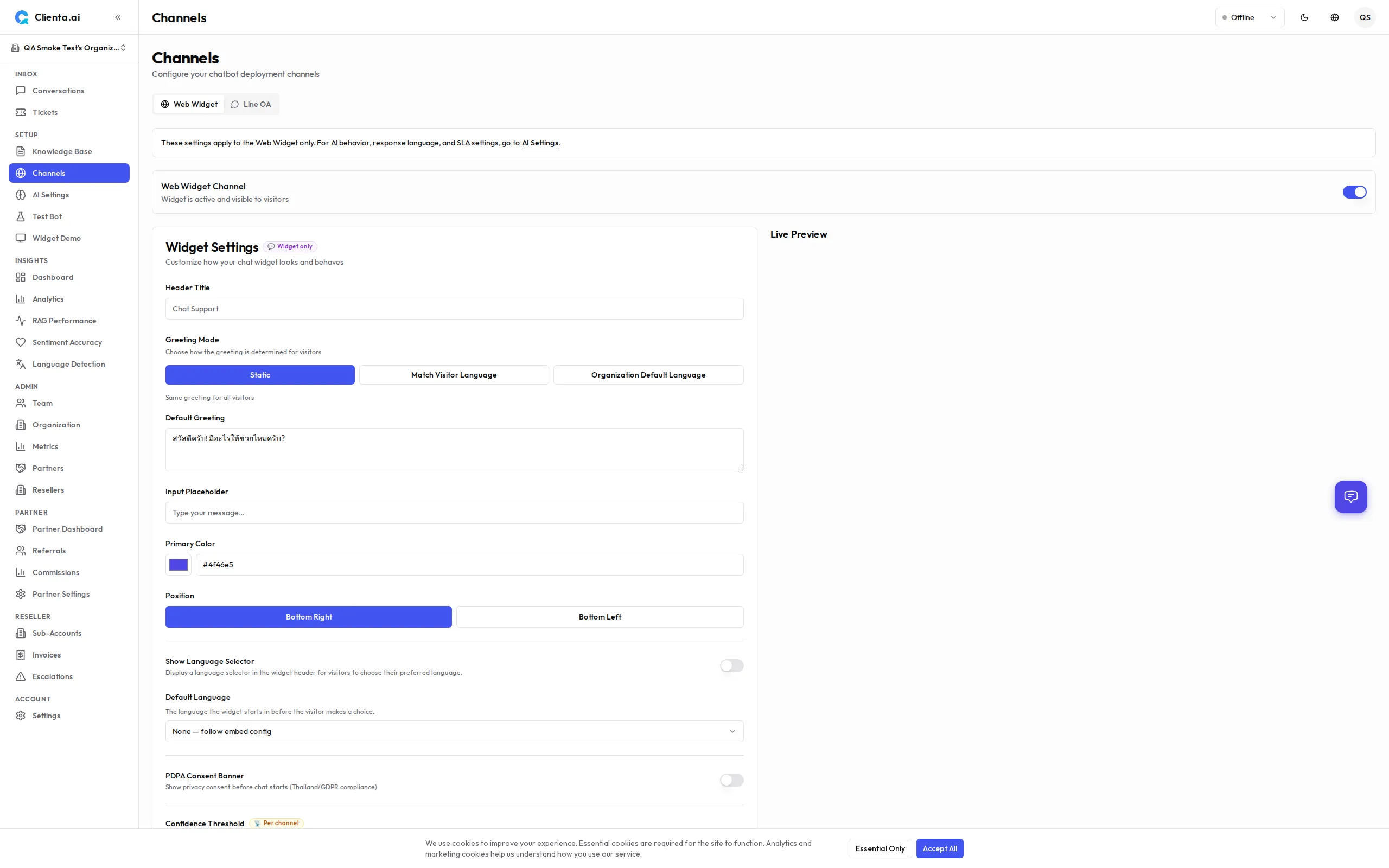
Gehe zu Kanäle → Web-Widget im linken Menü.
-
Klicke auf Widget erstellen und gib ihm einen Namen.
-
Konfiguriere die Widget-Einstellungen (siehe Anpassung unten).
-
Kopiere den bereitgestellten Einbettungs-Code-Schnipsel.
-
Füge den Schnipsel in das HTML deiner Website ein, direkt vor dem schließenden
</body>-Tag. -
Speichere und veröffentliche deine Website — das Widget erscheint sofort.
Einbettungs-Code
Abschnitt betitelt „Einbettungs-Code“<!-- Clienta.ai Web Widget --><script> window.ClientaConfig = { botId: "YOUR_BOT_ID", widgetId: "YOUR_WIDGET_ID", };</script><script src="https://api.clienta.ai/widget/YOUR_WIDGET_ID/loader.js" async></script>Ersetze YOUR_BOT_ID und YOUR_WIDGET_ID durch die in deinem Dashboard angezeigten Werte.
Anpassung
Abschnitt betitelt „Anpassung“| Option | Beschreibung |
|---|---|
| Designfarbe | Lege die Primärfarbe passend zu deiner Marke fest (Hex-Code oder Farbwähler) |
| Willkommensnachricht | Die erste Nachricht, die angezeigt wird, wenn ein Nutzer das Widget öffnet |
| Position | Wähle die Platzierung unten rechts oder unten links auf dem Bildschirm |
| Avatar | Lade ein benutzerdefiniertes Avatar-Bild für den Bot hoch |
Weitere Optionen sind:
- Widget-Titel — Name, der in der Widget-Kopfzeile angezeigt wird
- Platzhaltertext — Hinweistext im Nachrichteneingabefeld
- Automatisches Öffnen nach Verzögerung — Öffnet das Widget automatisch nach N Sekunden (optional)
- Auf Mobilgeräten ausblenden — Widget-Sichtbarkeit auf Mobilgeräten umschalten
So funktioniert es
Abschnitt betitelt „So funktioniert es“-
Nutzer öffnet das Widget — Das Chat-Fenster gleitet aus der Ecke der Seite heraus.
-
Nachricht an den Bot gesendet — Die Nachricht des Nutzers wird über eine sichere WebSocket-Verbindung an Clienta.ai übertragen.
-
KI verarbeitet und antwortet — Der Bot ruft relevante Inhalte aus der Wissensdatenbank ab und generiert eine Antwort.
-
Übergabe an einen Menschen bei Bedarf — Falls das Vertrauen gering ist oder der Nutzer einen Menschen anfordert, wird das Gespräch über den Posteingang Unterhaltungen an einen verfügbaren Agenten weitergeleitet.
Kontaktformular
Abschnitt betitelt „Kontaktformular“Wenn der KI-Bot offline oder nicht in der Lage ist zu antworten, zeigt das Widget einen CTA-Ballon an, der den Besucher auffordert, seine Kontaktdaten zu hinterlassen. Durch Tippen auf den Ballon öffnet sich ein Kontaktformular:
| Feld | Erforderlich | Hinweise |
|---|---|---|
| Ja | Immer erforderlich für Rückmeldungen | |
| Telefon | Nein | Enthält eine Ländervorwahl-Auswahl mit 37 Ländern und Emoji-Flaggen (z. B. 🇹🇭 +66, 🇺🇸 +1, 🇬🇧 +44, 🇯🇵 +81). Die serverseitige Validierung stellt sicher, dass die übermittelten Codes gültig sind. |
| Name | Nein | Name des Besuchers |
| Nachricht | Nein | Zusätzlicher Kontext |
Die Kontaktformular-Einreichung erstellt ein Ticket, das auf der Admin-Seite Tickets sichtbar ist und bei Angabe sowohl E-Mail als auch Telefon anzeigt.
Neuer Chat nach Lösung
Abschnitt betitelt „Neuer Chat nach Lösung“Wenn ein Agent eine Unterhaltung löst, zeigt das Widget eine Systemmeldung und einen „Neuen Chat starten”-Button an. Ein Klick darauf:
- Löscht den aktuellen Unterhaltungsverlauf
- Stellt eine neue WebSocket-Sitzung her
- Setzt das Widget in seinen Ausgangszustand zurück
So können Besucher eine neue Unterhaltung starten, ohne die Seite neu zu laden.
WebSocket-Echtzeit
Abschnitt betitelt „WebSocket-Echtzeit“Das Widget verwendet eine persistente WebSocket-Verbindung für Echtzeit-Messaging mit niedriger Latenz. Wichtige Verhaltensweisen:
- Automatische Wiederverbindung — Der Client stellt automatisch eine Verbindung wieder her, wenn diese abbricht.
- Tipp-Indikator — Zeigt eine Tipp-Animation an, während der Bot eine Antwort generiert.
- Tipp-Indikator für Agenten — v1.6.8 Wenn ein menschlicher Agent eine Antwort tippt, zeigt das Widget dem Besucher in Echtzeit eine Tipp-Animation an.
- Nachrichtenverlauf — Der Unterhaltungsverlauf bleibt innerhalb derselben Browser-Sitzung erhalten.
- Tab-übergreifende Synchronisierung — Wenn der Nutzer mehrere Tabs geöffnet hat, wird der Unterhaltungsstatus synchronisiert.
Markdown-Antworten
Abschnitt betitelt „Markdown-Antworten“KI- und Agenten-Nachrichten werden als formatiertes Markdown statt als Klartext dargestellt. Unterstützte Formatierungen sind:
- Fett, kursiv,
durchgestrichen - Links (werden automatisch in einem neuen Tab geöffnet)
- Inline-
Codeund umgrenzte Code-Blöcke - Geordnete und ungeordnete Listen
- Überschriften, Blockzitate und Tabellen
Alle Markdown-Inhalte werden mit einer strikten Zulassungsliste bereinigt, um XSS-Angriffe zu verhindern. Es ist keine Konfiguration erforderlich — das Markdown-Rendering ist standardmäßig für alle KI- und Agenten-Antworten aktiviert. Nutzernachrichten bleiben Klartext.
Marken-Avatar
Abschnitt betitelt „Marken-Avatar“Zeige dein Markenlogo oder einen benutzerdefinierten Avatar in der Widget-Kopfzeile und auf dem Startbildschirm an. Lege die avatarUrl unter Einstellungen → Kanäle → Web → Anpasser fest oder übergib sie als config.theme.avatarUrl im Einbettungs-Code.
- Es werden nur
https://-URLs akzeptiert - Wenn die URL ungültig ist oder das Bild nicht geladen werden kann, wird das Standard-Funkel-Symbol angezeigt
- Empfehlung: ein quadratisches Bild (z. B. 128 × 128 px) für beste Ergebnisse
Siehe Widget-Anpassung — Avatar für Details.
KI- vs. Mensch-Beschriftungen
Abschnitt betitelt „KI- vs. Mensch-Beschriftungen“Jede Nicht-Nutzer-Nachricht zeigt eine kleine Autor-Beschriftung an, die den Absender identifiziert:
| Autor-Typ | Angezeigte Beschriftung |
|---|---|
| KI-Bot | „KI-Assistent” (lokalisiert) |
| Menschlicher Agent | Name des Agenten (z. B. „Sarah”) |
Beschriftungen sind in allen 15 unterstützten Sprachen lokalisiert und für Screenreader zugänglich. Dies hilft Besuchern, klar zwischen KI-generierten und menschlichen Antworten zu unterscheiden, und unterstützt Best Practices für Transparenz.
Begrüßungssprache
Abschnitt betitelt „Begrüßungssprache“Die Widget-Begrüßungsnachricht unterstützt drei Sprachmodi, die unter Einstellungen → Kanäle → Web → Anpasser → Begrüßungsmodus konfiguriert werden:
| Modus | Verhalten |
|---|---|
| Statisch | Zeigt allen Besuchern dieselbe Begrüßung unabhängig von der Sprache |
| Besucher abgleichen | Zeigt eine sprachspezifische Begrüßung — konfiguriere für jedes der 15 Gebietsschemas einen anderen Begrüßungstext |
| Org-Haupt | Zeigt die Begrüßung immer in der Hauptantwortsprache der Organisation an (eingestellt in den KI-Einstellungen) |
Im Modus Besucher abgleichen fällt jedes Gebietsschema ohne konfigurierte Begrüßung auf den statischen Begrüßungstext zurück.
Siehe Widget-Anpassung — Begrüßungsmodus für die schrittweise Konfiguration.
Sprachauswahl
Abschnitt betitelt „Sprachauswahl“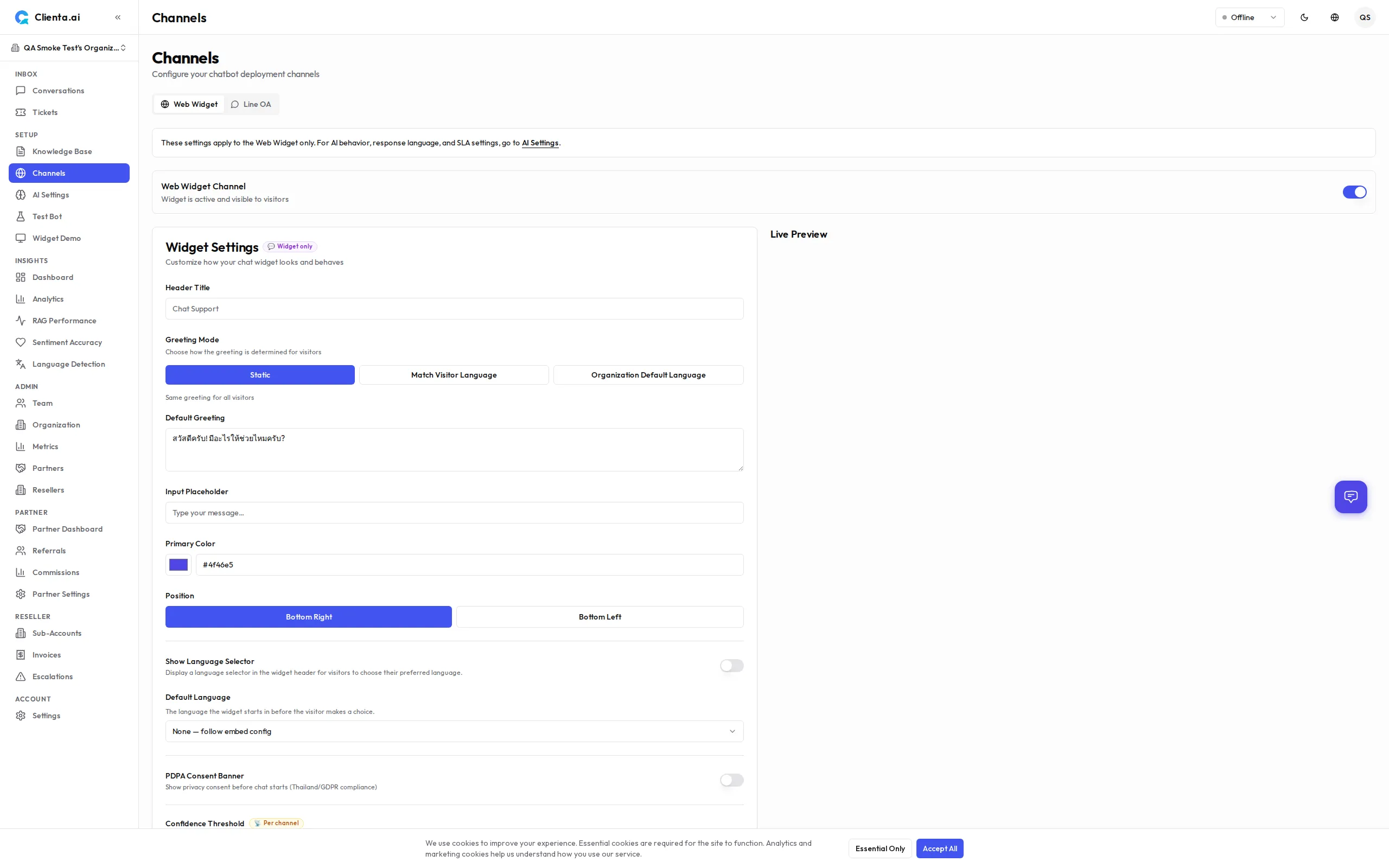
Das Widget kann ein Globus-Symbol in der Kopfzeile anzeigen, über das Besucher ihre bevorzugte Sprache explizit auswählen können. Diese Funktion ist standardmäßig deaktiviert und muss pro Widget unter Einstellungen → Kanäle → Web → Anpasser aktiviert werden.
Wenn aktiviert:
- Ein Globus (🌐)-Symbol erscheint in der Widget-Kopfzeile
- Besucher können aus bis zu 15 unterstützten Gebietsschemas wählen
- Die Auswahl einer Sprache sperrt alle KI-Antworten für die Sitzung auf diese Sprache und überschreibt die automatische Erkennung
- Die Sperre bleibt bestehen, auch wenn der Besucher in einer anderen Sprache tippt
RTL-Unterstützung (Rechts-nach-Links)
Abschnitt betitelt „RTL-Unterstützung (Rechts-nach-Links)“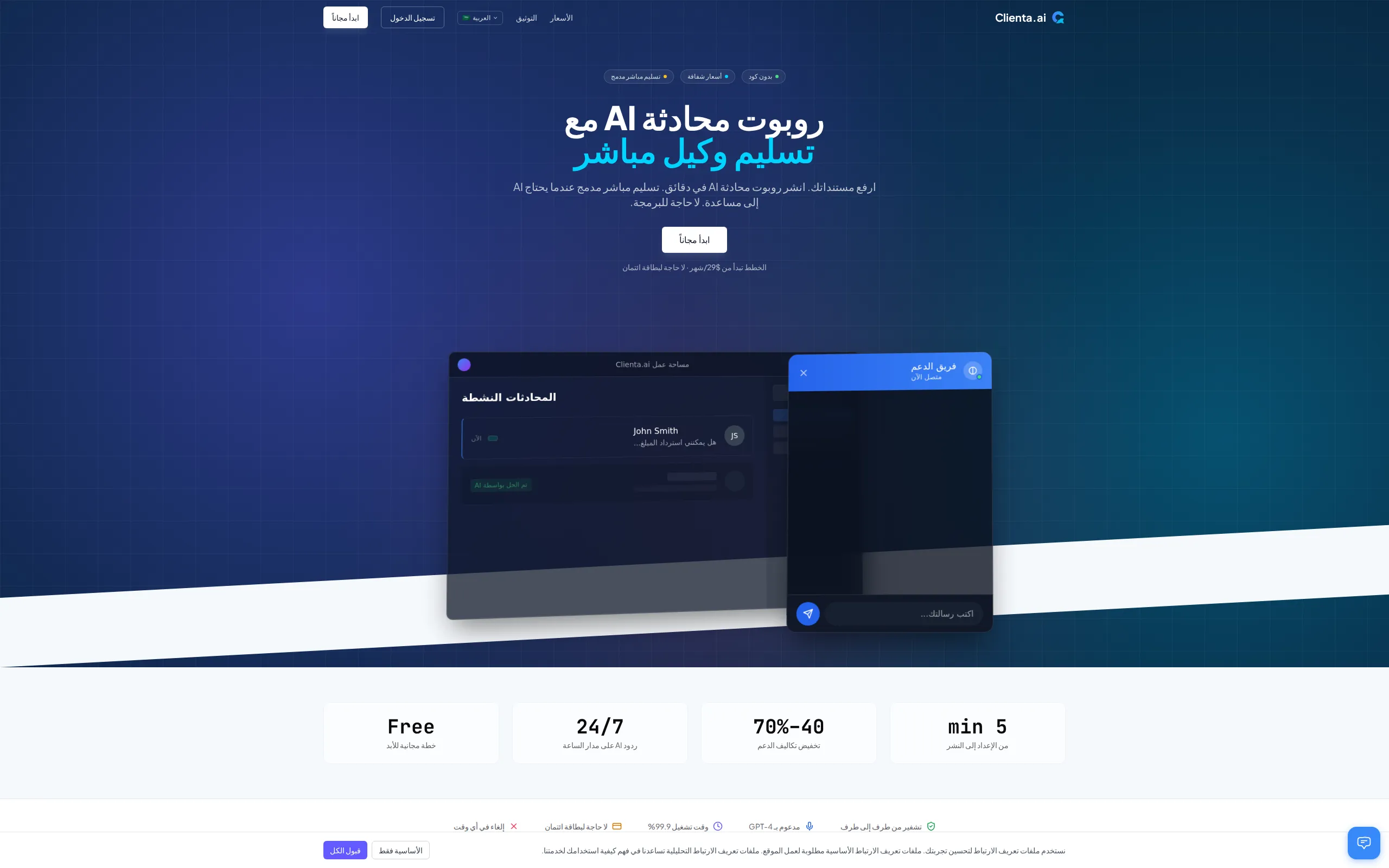
Das Widget und die Landing Page unterstützen vollständig RTL-Layouts für Arabisch und Hebräisch. Wenn ein Besucher ein RTL-Gebietsschema verwendet:
- Das gesamte Layout wird gespiegelt (Textausrichtung, Navigation, UI-Elemente)
- Das
<html dir="rtl">-Attribut wird automatisch gesetzt - Chat-Nachrichten und das Eingabefeld richten sich korrekt für den RTL-Lesefluss aus
Es ist keine manuelle Konfiguration erforderlich — RTL wird automatisch basierend auf dem ausgewählten Gebietsschema aktiviert.
Fallback bei Mount-Timeout
Abschnitt betitelt „Fallback bei Mount-Timeout“Wenn das Widget-Skript (widget.js) nicht innerhalb von 10 Sekunden geladen werden kann, zeigt die Einbettung eine Fallback-Benutzeroberfläche an, anstatt einen leeren Bereich zu hinterlassen. Der Fallback enthält einen Wiederholen-Button, damit der Besucher versuchen kann, das Widget neu zu laden, ohne die Seite zu aktualisieren.
Dies schützt die Nutzererfahrung, wenn Netzwerkprobleme, Werbeblocker oder CDN-Ausfälle das Laden des Widgets verhindern.
Visuelles Widget-Redesign
Abschnitt betitelt „Visuelles Widget-Redesign“Das Widget erhielt in v1.6.8 eine visuelle Auffrischung mit einem modernen, polierten Look:
- Verlaufs-Kopfzeile — Die Widget-Kopfzeile verwendet einen subtilen Verlauf basierend auf deiner Designfarbe, mit einem Status-Punkt und Avatar-Anzeige.
- Abgerundete Nachrichtenblasen — Chat-Blasen verwenden einen größeren Rahmenradius (
rounded-2xl) für ein weicheres Erscheinungsbild. - Animiertes Öffnen/Schließen — Das Widget gleitet mit flüssigen CSS-Animationen herein und heraus, anstatt sofort zu erscheinen.
- Neu gestalteter Launcher — Der Chat-Blasen-Launcher ist ein 60px großes Squircle mit einem markenfarbenigen Leuchtschatten und einer Eingangsanimation.
- Dunkelmodus-Umschalter — Ein Umschalter in der Chat-Kopfzeile lässt Besucher während ihrer Sitzung zwischen Hell- und Dunkelmodus wechseln.
- Thematisierte Fokusringe — Eingabefelder zeigen markenfarbenige Fokusringe für Barrierefreiheit.
- Benachrichtigungs-Badge — Ein Badge für ungelesene Nachrichten erscheint auf der Launcher-Blase.
Diese visuellen Änderungen werden automatisch angewendet — es sind keine Konfigurationsänderungen erforderlich.
Zitations-Chips
Abschnitt betitelt „Zitations-Chips“Wenn der KI-Bot mit Informationen aus deiner Wissensdatenbank antwortet, erscheinen Zitations-Chips unterhalb der Nachricht. Jeder Chip repräsentiert ein abgerufenes Dokument, das zur Antwort beigetragen hat.
| Verhalten | Beschreibung |
|---|---|
| Chip-Anzeige | Zeigt bis zu 3 Dokument-Titel-Chips an. Wenn mehr Quellen verwendet wurden, zeigt ein „+N weitere”-Chip zusätzliche Zitationen an. |
| Klicken zum Erweitern | Ein Klick auf einen Chip schaltet einen Inline-Ausschnitt um, der die ersten 200 Zeichen des abgerufenen Inhalts anzeigt. Es kann immer nur ein Ausschnitt geöffnet sein. |
| Titel-Kürzung | Lange Dokumenttitel werden auf 40 Zeichen mit einem Auslassungszeichen gekürzt. |
| Thematisierung | Chips verwenden die Primärfarbe deines Widgets als subtilen Farbton, mit vollem Dunkelmodus- und RTL-Support. |
| Barrierefreiheit | Chips sind per Tastatur navigierbar mit korrekten ARIA-Labels (aria-expanded), Listen-Rollen und Screenreader-Unterstützung. |
Zitations-Chips geben Besuchern Transparenz darüber, woher die Antwort des Bots stammt, und stärken das Vertrauen in die KI-Antworten. Es ist keine Konfiguration erforderlich — Zitationen erscheinen automatisch, wenn die RAG-Pipeline relevante Dokumente abruft.
Automatisches Scrollen
Abschnitt betitelt „Automatisches Scrollen“Das Widget scrollt automatisch zur neuesten Nachricht, wenn neue Inhalte eintreffen. Dies gilt für:
- Neue Nachrichten vom KI-Bot oder einem menschlichen Agenten
- Streaming-Inhalte, während der Bot eine Antwort in Echtzeit generiert
Das Scrollen verwendet eine flüssige Animation, damit der Übergang natürlich wirkt. Es ist keine Konfiguration erforderlich — automatisches Scrollen ist immer aktiv.
Kanal-Limits nach Plan
Abschnitt betitelt „Kanal-Limits nach Plan“| Plan | Max. Kanäle |
|---|---|
| Free | 1 |
| Starter | 2 |
| Growth | 5 |
| Plus | 6 |
| Pro | 15 |
| Scale | 30 |
| Enterprise | 50 |