

Line OA Integration
Line OA Integration
Section titled “Line OA Integration”Connect your Line Official Account to Clienta.ai so your AI bot can handle customer messages directly through Line — the most popular messaging platform in Thailand.
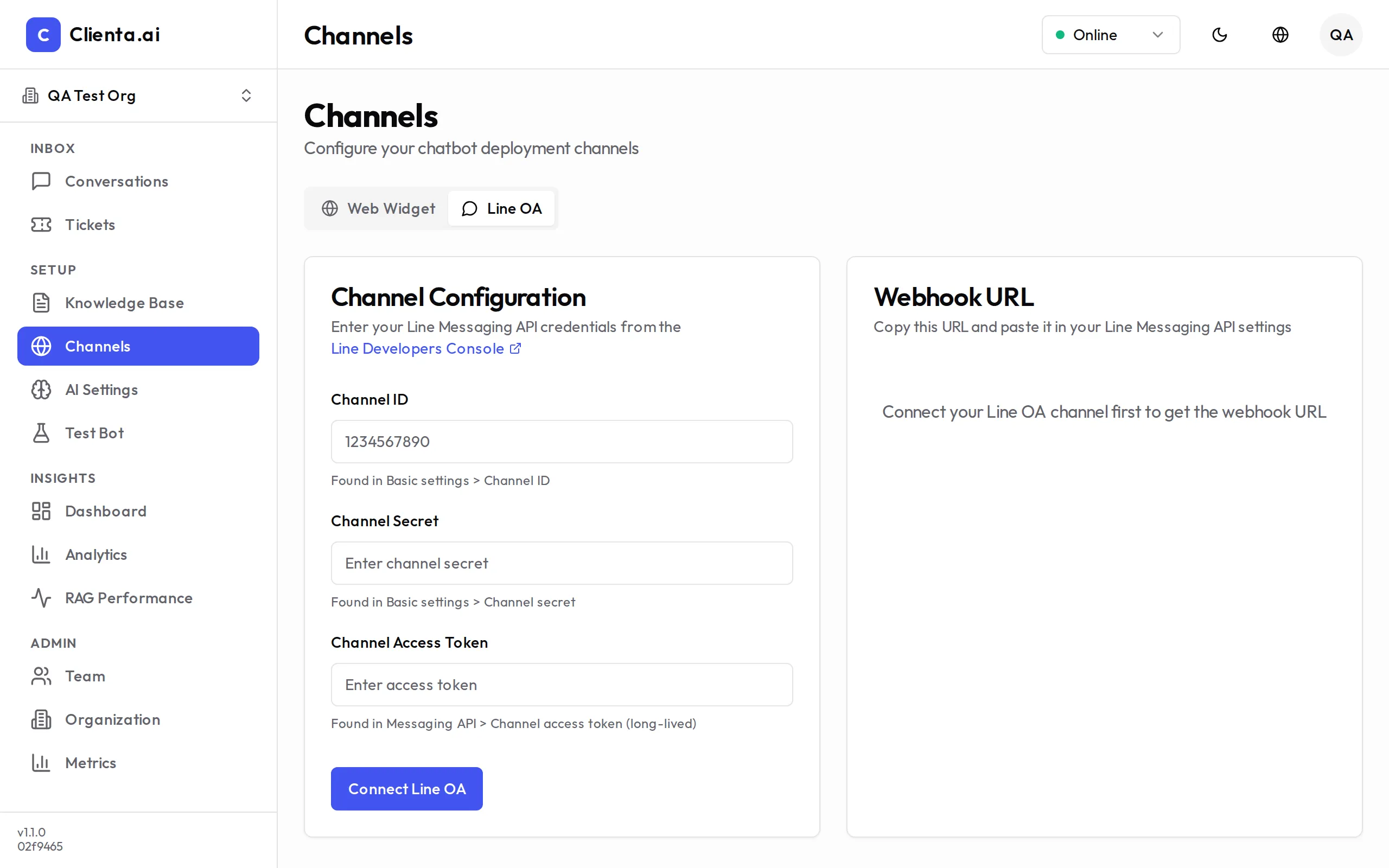
-
Log in to the LINE Developers Console and open your provider.
-
Select your Messaging API channel (or create a new one if you don’t have one yet).
-
Go to the Messaging API tab and copy your Channel Secret and Channel Access Token.
-
In Clienta.ai, go to Channels → Line OA and click Connect.
-
Paste the Channel Secret and Channel Access Token into the respective fields, then click Save. Copy the Webhook URL provided by Clienta.ai.
-
Back in the LINE Developers Console, go to Messaging API → Webhook settings, paste the Webhook URL, and click Verify to confirm the connection.
How It Works
Section titled “How It Works”- When a user sends a message to your LINE OA, LINE forwards it to Clienta.ai via the webhook.
- The AI bot processes the message using your knowledge base and responds automatically.
- If confidence is low or a human is needed, the conversation appears in the Conversations inbox for your agents to handle.
- Agents can reply directly from the Clienta.ai inbox — replies are sent back to the user on LINE seamlessly.
Feature Support
Section titled “Feature Support”| Feature | Supported |
|---|---|
| Shared Knowledge Base | ✅ |
| Shared Inbox (Conversations) | ✅ |
| Rich Messages (Flex, Carousel, Buttons) | ❌ |
| Counts Toward Message Quota | ✅ |
Troubleshooting
Section titled “Troubleshooting”Webhook verification fails — Check that the Webhook URL was copied exactly as shown in Clienta.ai. Trailing spaces or missing characters will cause verification to fail.
Bot not responding — Confirm that Use webhook is enabled in the LINE Developers Console. If Auto-reply Messages is still enabled in LINE Official Account Manager, disable it to avoid duplicate responses.
Messages not appearing in inbox — Ensure the bot is assigned to the LINE OA channel in Bot Settings → Channels.