

Conversations
Conversations
Section titled “Conversations”The Conversations screen is your unified inbox. Every message from every connected channel — Web Widget, LINE OA, and future channels — flows into one place so your team never misses a customer.
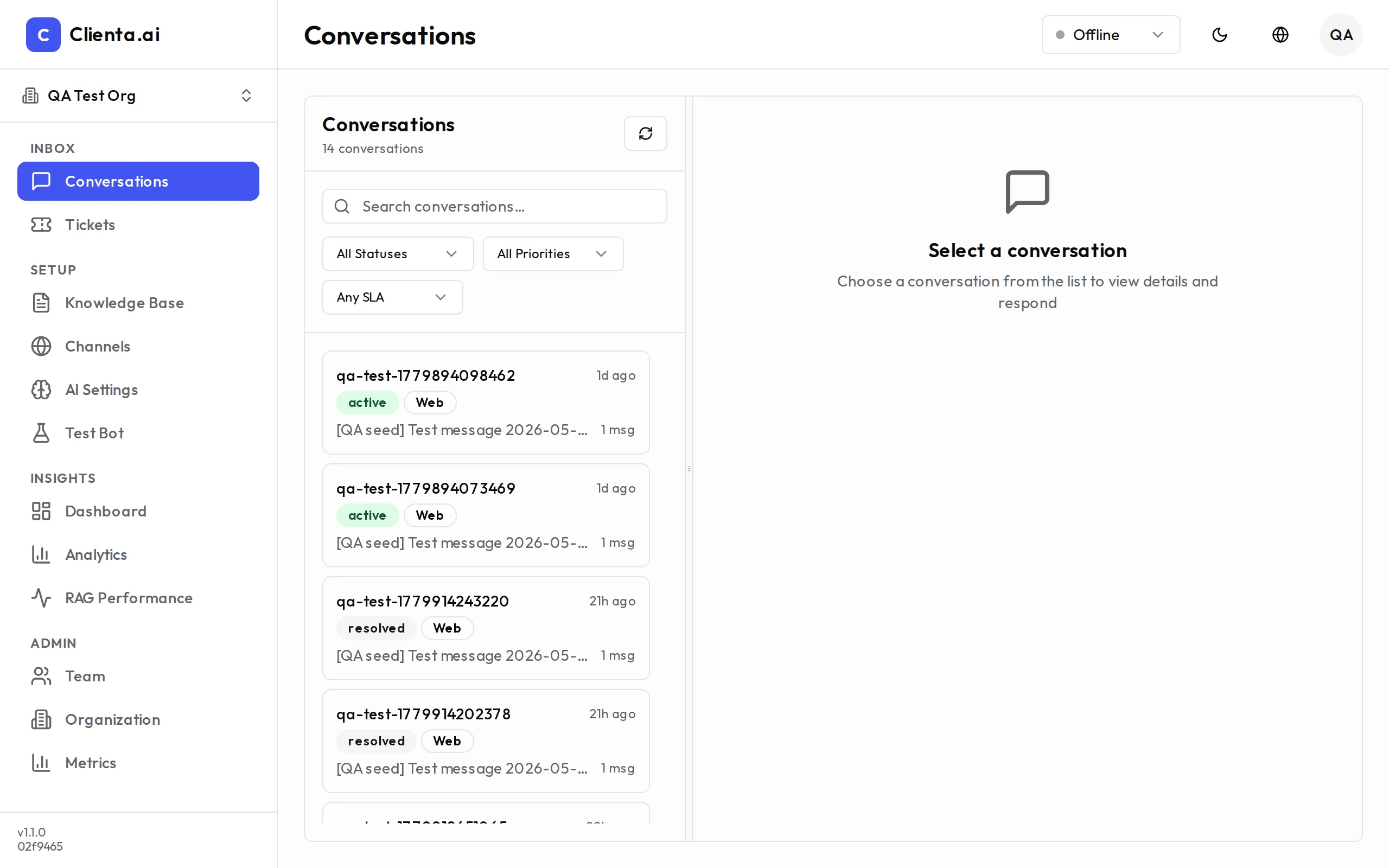
The inbox displays all conversations with filters to help you focus on what needs attention:
Filter by Status:
- Active — Conversations currently being handled by the AI bot or an agent
- Pending Handoff — Conversations where the AI has flagged low confidence and is waiting for a human agent to take over
- Resolved — Conversations that have been closed
Filter by Channel:
- View conversations from a specific channel (e.g., Web Widget only, or LINE OA only)
- Or view All Channels in a single unified feed
Conversation Detail
Section titled “Conversation Detail”Click any conversation to open the full detail view:
| Element | Description |
|---|---|
| Message Thread | Full conversation history between the user and the bot/agent, in chronological order |
| Status | Current status (Active / Pending Handoff / Resolved) with the option to change it manually |
| Source Context | Metadata about the conversation — when it started, session ID, and any context tags |
| Channel | Which channel this conversation came from (Web Widget, LINE OA, etc.) |
For Agents
Section titled “For Agents”When a conversation lands in Pending Handoff, here is how to handle it:
-
Open the conversation from the Pending Handoff filter in the inbox.
-
Review the conversation history to understand the context before responding.
-
Click Take Over to assign the conversation to yourself — this moves it to Active and notifies the user that a human agent has joined.
-
Reply to the user using the message input at the bottom of the thread.
-
When the issue is resolved, click Resolve to close the conversation and move it to the Resolved tab.
Bulk Actions
Section titled “Bulk Actions”You can select multiple conversations and apply bulk actions:
- Resolve All — Close multiple resolved conversations at once
- Re-assign — Move selected conversations to another agent
- Export — Download conversation history as CSV (Pro and Enterprise plans)
Search
Section titled “Search”Use the search bar at the top of the inbox to find conversations by:
- User message content
- Session ID
- Date range
Search results respect your active channel and status filters.